
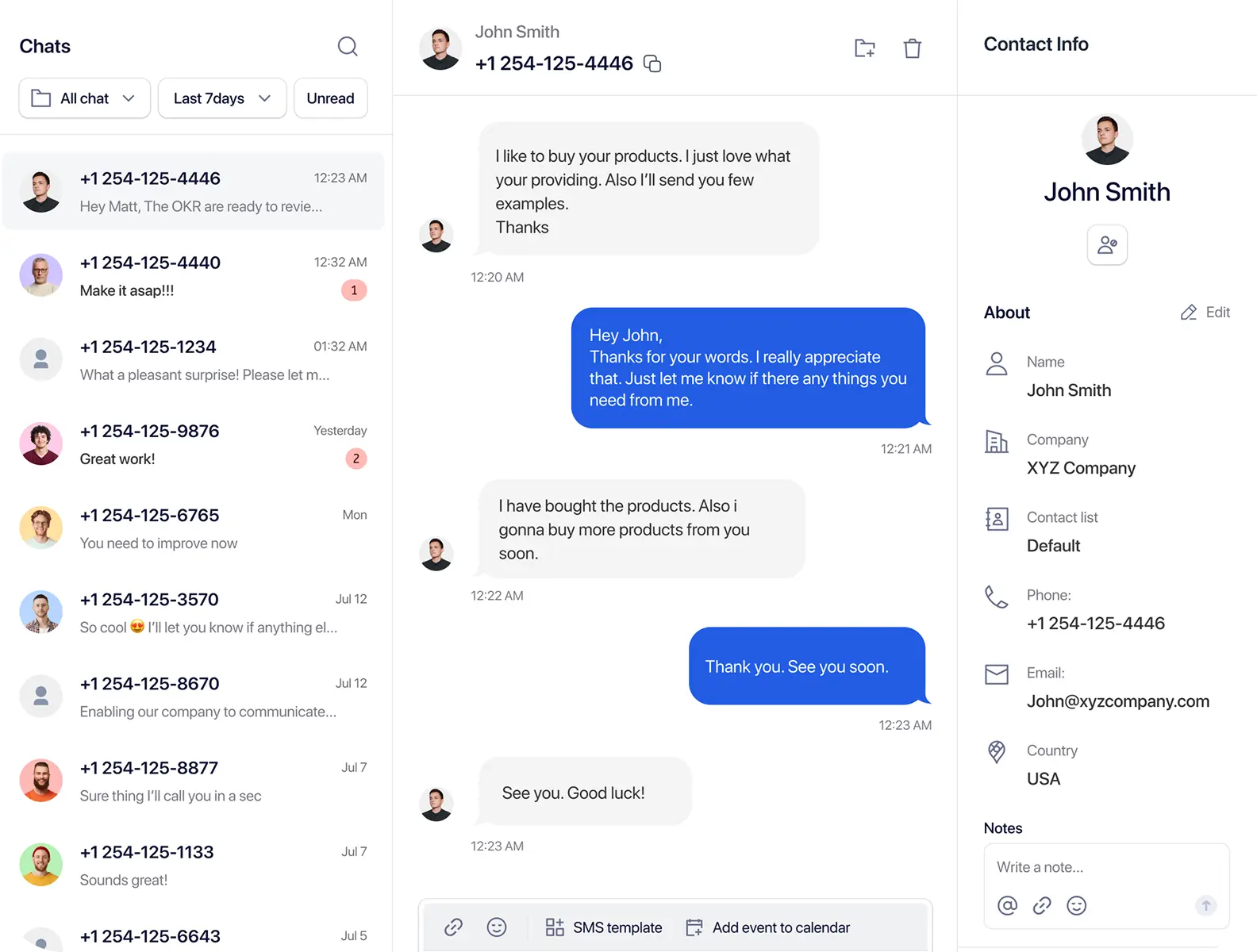
Manage Customer Conversations from a Shared SMS Inbox

TextTorrent gives authorized team members one shared SMS inbox to review customer replies, use Claims to take ownership, see conversation history, and respond from supported business numbers. Keep team access organized so follow-up stays connected to the right contact and account context.

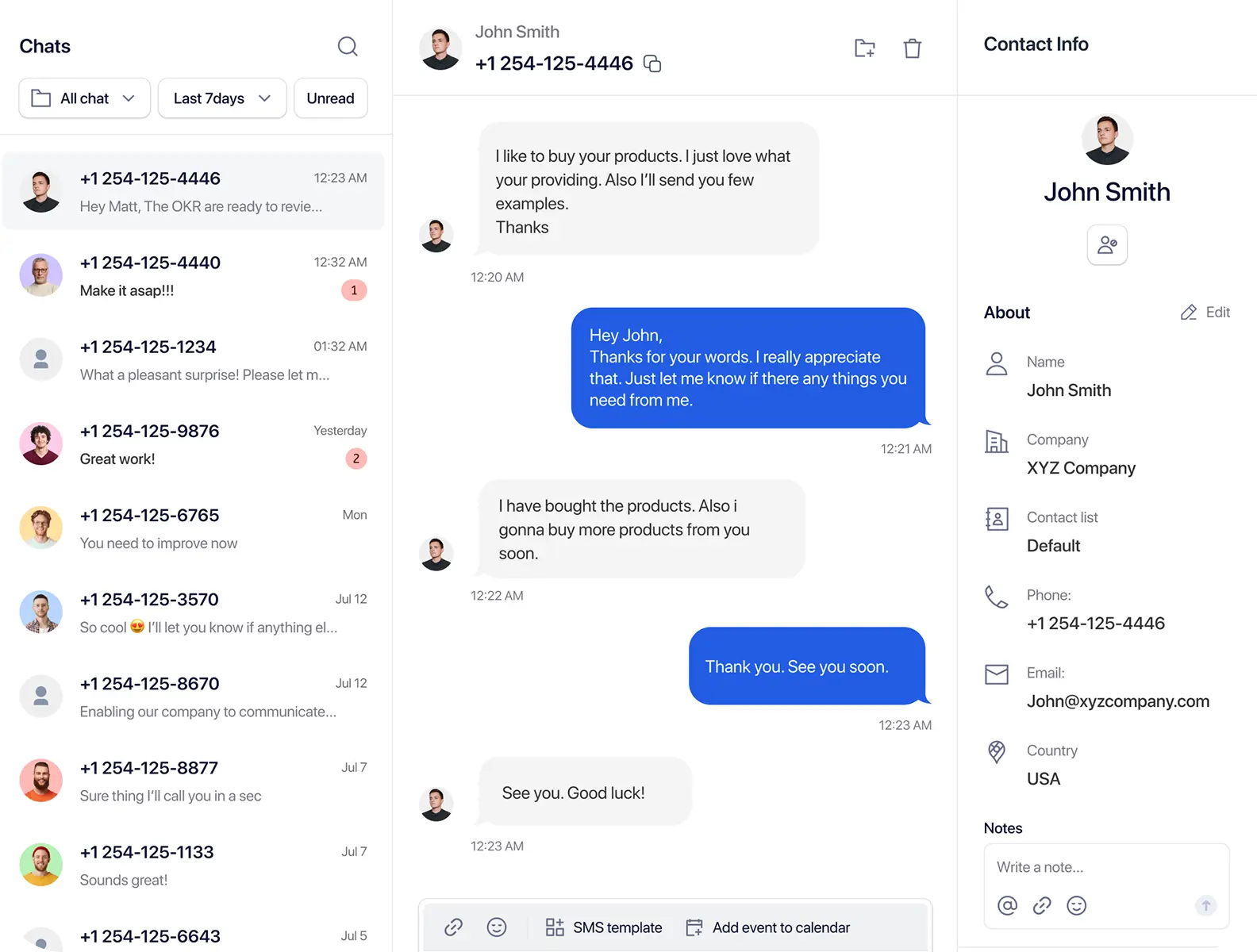
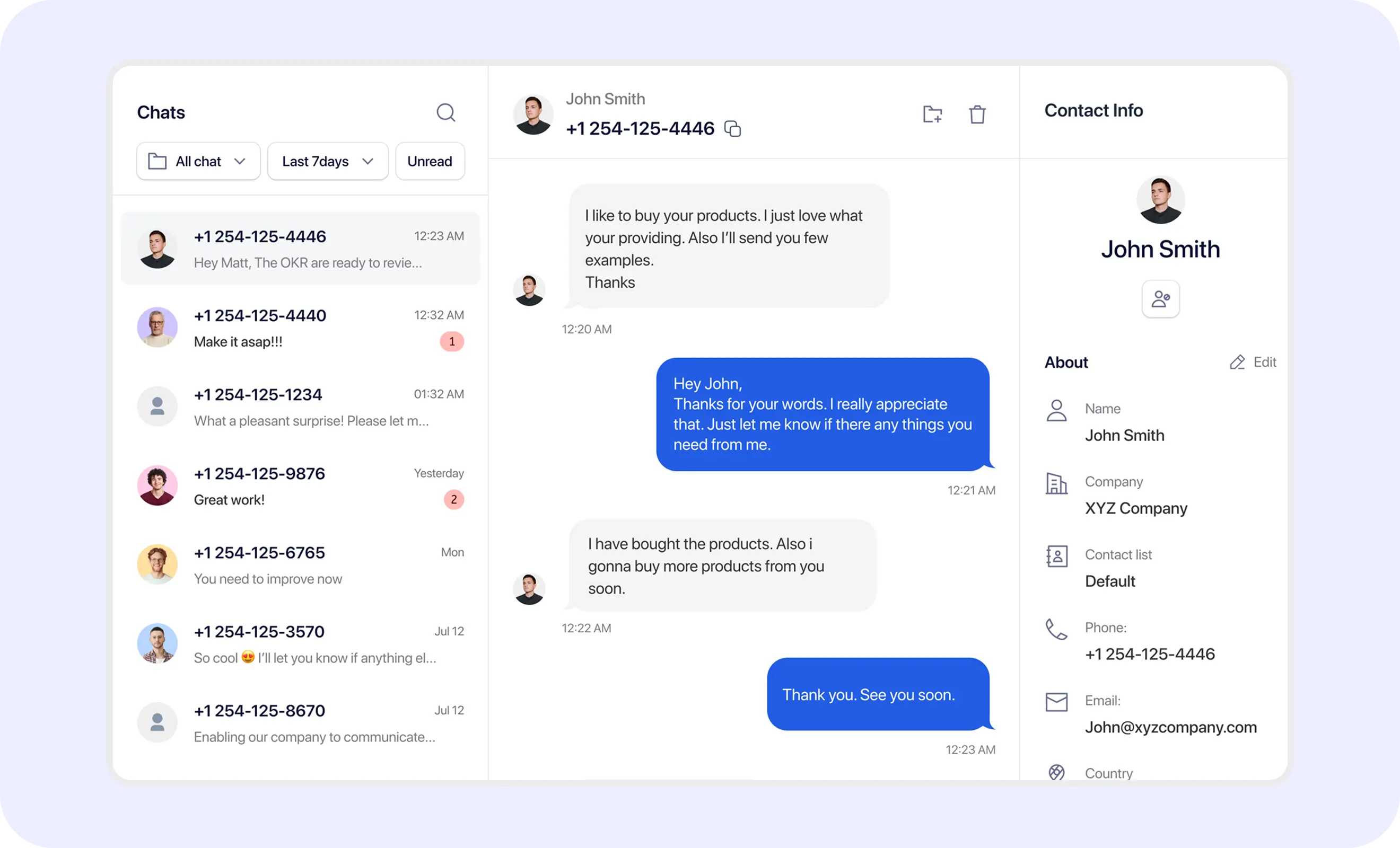
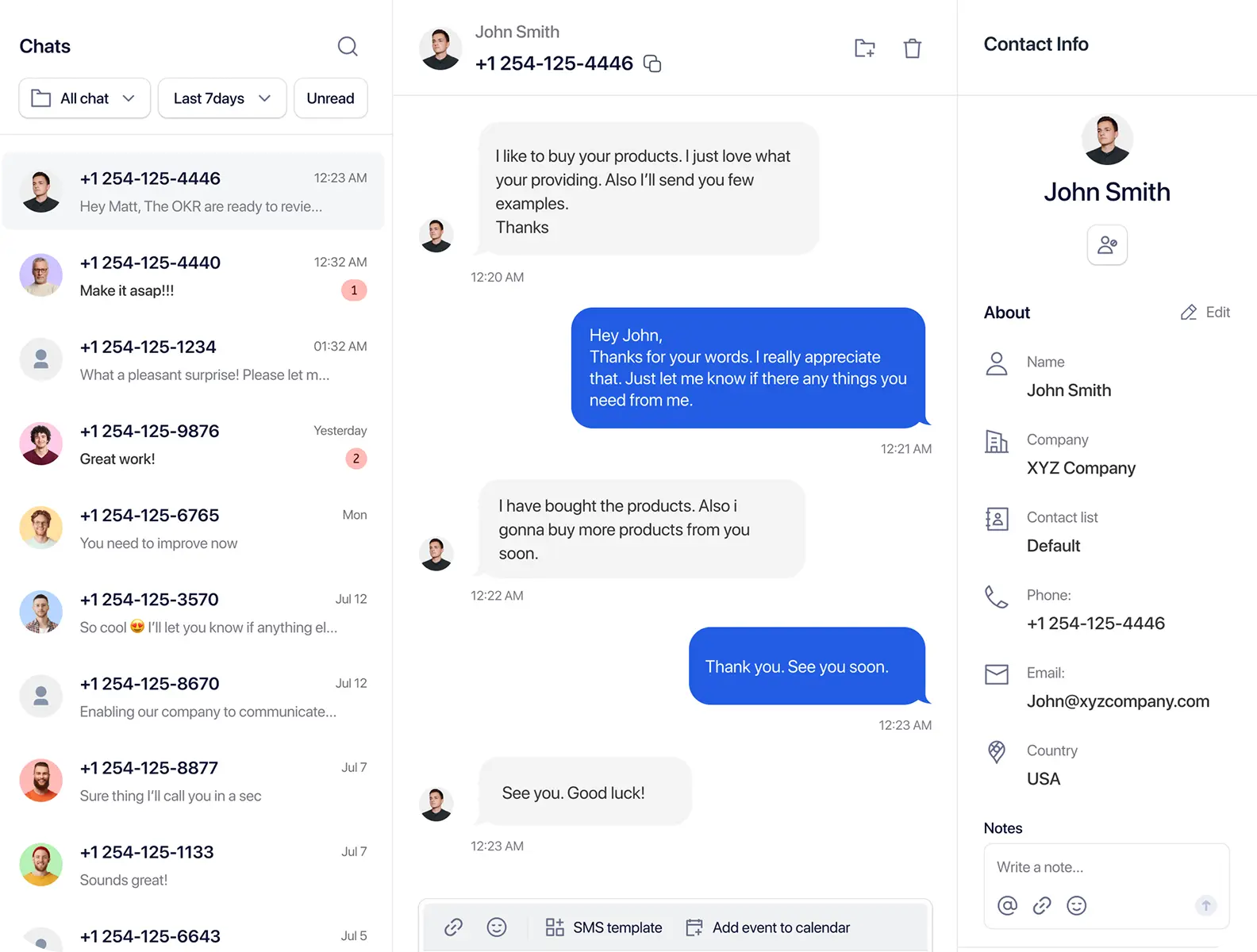
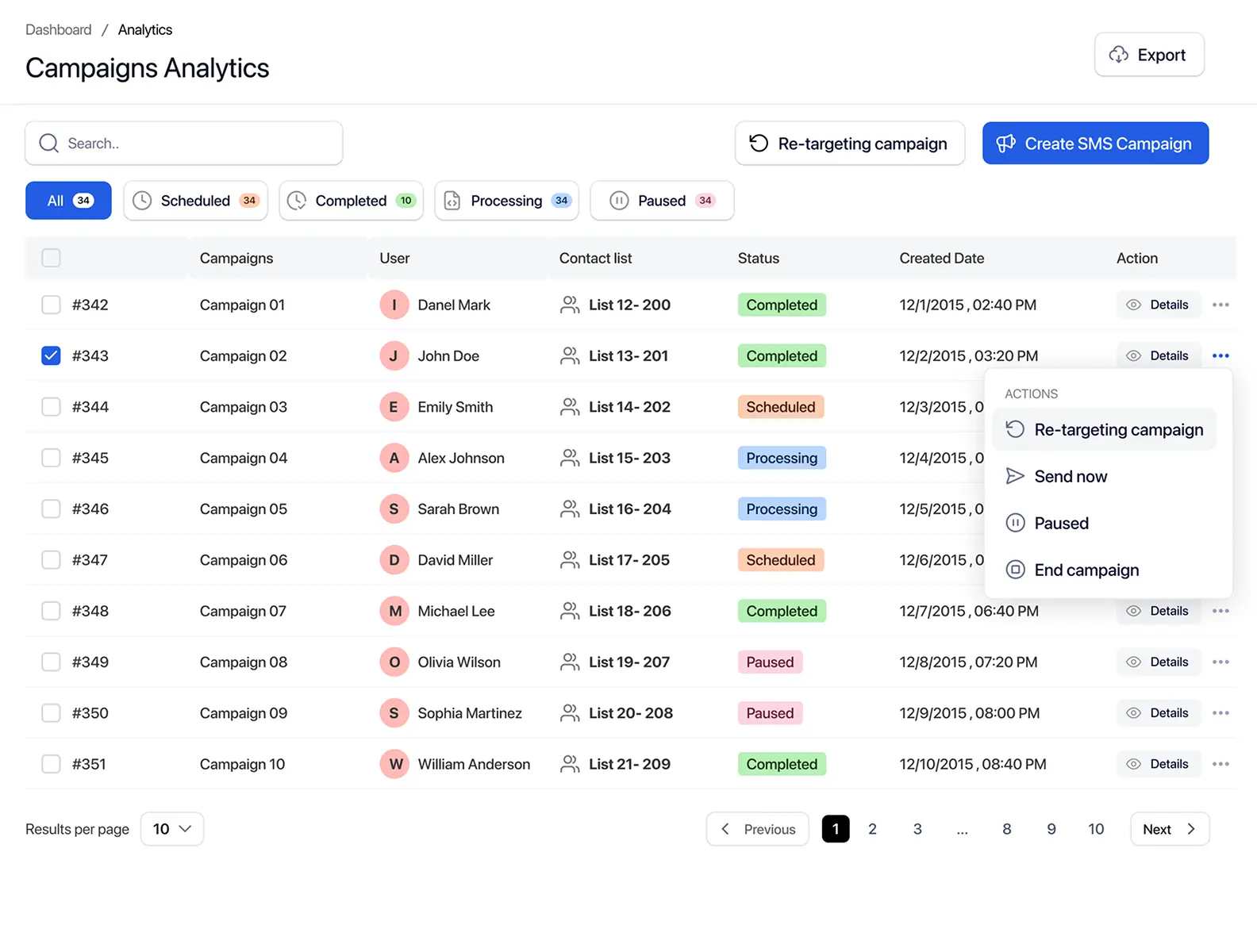
TextTorrent shared SMS inbox showing customer conversations, message history, and reply composer

No credit card required

Manage Replies in One Workspace

Keep Conversation Context

Organize Conversation Ownership

The Challenge

Customer Replies Become Difficult to Manage Across Personal Devices

When business texts live on personal phones or disconnected tools, teams struggle to keep ownership, context, and follow-up consistent.

Conversations Become Scattered

Conversations Become Scattered

Business messages stored across personal phones or disconnected tools are difficult for a team to review together.

Teams Lose Message Context

Teams Lose Message Context

A user needs previous campaign and conversation details before responding with accurate, useful information.

Ownership Becomes Unclear

Ownership Becomes Unclear

Teams need to know which conversations are unclaimed, accepted, or already being handled.

Customer Follow-Up Becomes Inconsistent

Customer Follow-Up Becomes Inconsistent

Unclear ownership can lead to delayed, duplicated, or conflicting replies when teammates lack a shared workspace.

The TextTorrent Inbox

Connect Customer Replies, Contact Context, and Team Ownership

The TextTorrent inbox connects incoming SMS replies, incoming MMS where supported, Claims, accepted conversations, the main inbox, contact records, conversation history, campaign context, business numbers, user access, sub-account context, the message composer, templates where supported, and opt-out or blacklist status where available.

TextTorrent business SMS inbox showing conversation list, contact context, and messaging controls
Review the conversation and contact context before sending the next reply.
How It Works

From Incoming Reply to Managed Conversation

A shared SMS inbox works best when outbound outreach, inbound replies, ownership, and follow-up stay connected in one workflow.

01

Send a Campaign or Direct Message

A conversation may begin from a bulk campaign or a direct business message sent from a supported TextTorrent number.

02

The Customer Replies

When the recipient responds, the inbound message enters the TextTorrent conversation workflow instead of staying isolated on a personal phone.

03

The Conversation Appears in Claims

Incoming replies may first appear in the Claims area so an authorized team member can take ownership.

04

A Team Member Claims or Accepts It

An authorized user claims or accepts the available conversation so responsibility is clear before follow-up continues.

05

The Conversation Moves to the Inbox

Accepted conversations become available in the appropriate main inbox workflow for the user and account context.

06

The Team Member Reviews Context

The user can review message history and available contact information before writing the next reply.

07

Continue the Conversation

The user replies through the supported business number, keeping future messages in the same conversation history.

  1. Outbound message
  2. Customer reply
  3. Claims
  4. Claim or accept
  5. Main inbox
  6. Team response
Conversation Ownership

Use Claims to Identify Conversations That Need an Owner

Claims helps teams organize new replies before they are handled in the main inbox. Exact labels and behavior should match the current product interface.

An unclaimed conversation is a reply that is available for an authorized user to review or take ownership. Incoming replies may appear in Claims so ownership is clearer before the conversation continues in the inbox.

Unclaimed

Unclaimed

A conversation is available for an authorized user to review or take ownership.

Claimed

Claimed

A user has taken responsibility for the conversation.

Accepted

Accepted

The conversation has been accepted and is available in the appropriate inbox workflow.

Claims may help clarify ownership, reduce uncertainty about new replies, move conversations into the correct user workflow, and keep the original message history available. After acceptance, the conversation moves into the main inbox workflow so the assigned user can review history and continue the exchange. Automatic assignment, round-robin routing, SLA prioritization, conversation locking, and collision detection are not claimed.

TextTorrent Claims area showing unclaimed customer SMS conversations
Accepted customer conversation in the TextTorrent shared SMS inbox
Active Conversations

Manage Accepted Conversations from the Main Inbox

After a conversation is accepted, it becomes available in the main inbox workflow so the team member can continue the exchange with clearer ownership.

  • The conversation appears in the main inbox workflow.
  • The assigned user can review it with existing message history.
  • Available contact information stays connected where supported.
  • The user can send SMS through a supported business number.
  • The user can send MMS where the number and provider allow it.
  • Reusable templates can be used where supported, then reviewed before sending.
  • The conversation remains connected to the correct account or sub-account context.
Accepted customer conversation in the TextTorrent shared SMS inbox
Conversation Context

Review Previous Messages Before You Reply

Conversation history helps a team member understand what was already sent, what the customer asked, and what should happen next.

  • Original outbound campaign or direct message where available
  • Incoming customer replies
  • Previous team responses
  • Message timestamps
  • Contact name where available
  • Phone number where available
  • Contact group or tag where available
  • Sending number
  • Subscriber, opt-out, or blacklist status where available
  • Campaign source where supported
  • Account or sub-account context
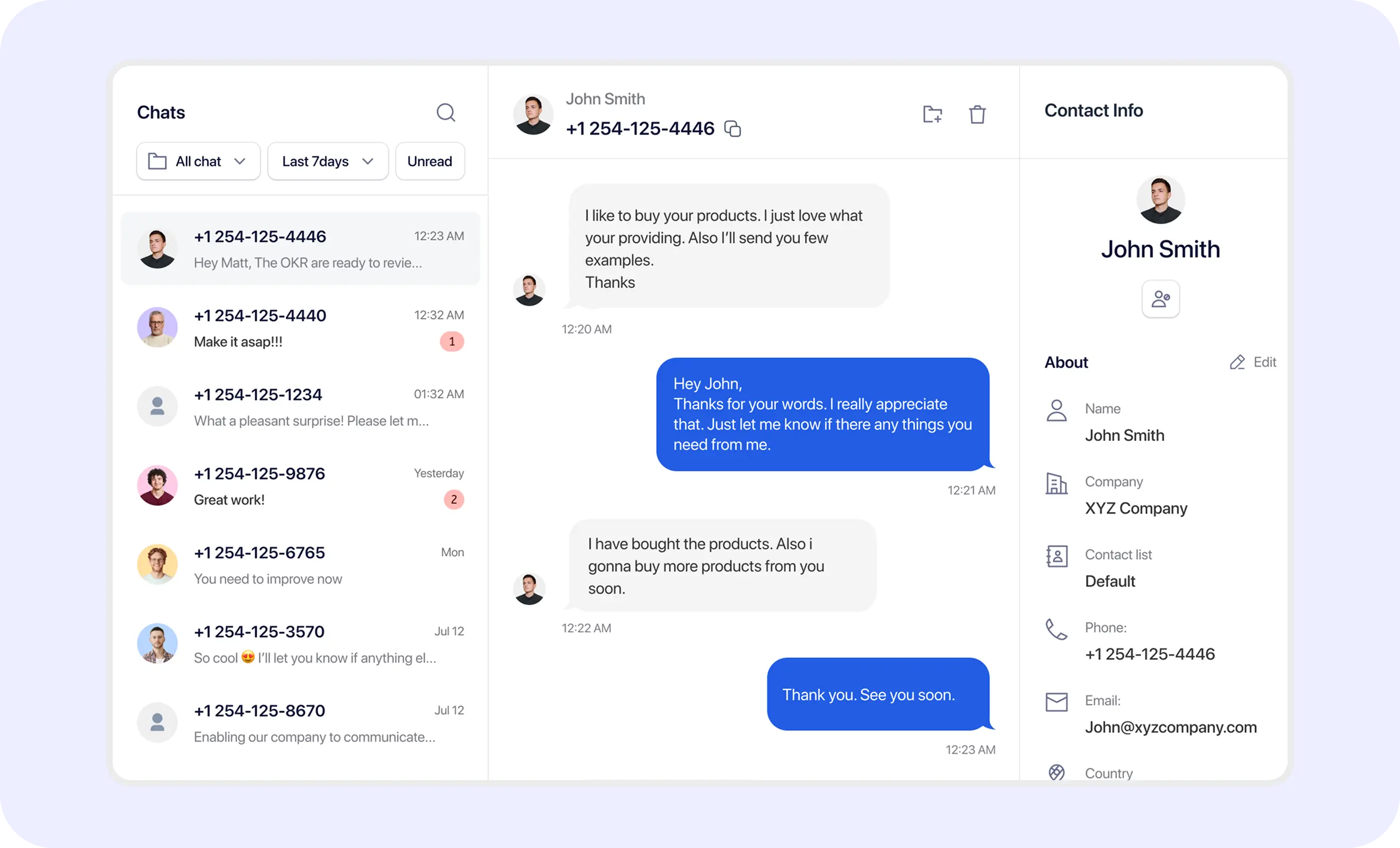
TextTorrent SMS conversation history showing incoming and outgoing customer messages
Use the available conversation and contact details to understand the customer’s request before responding.
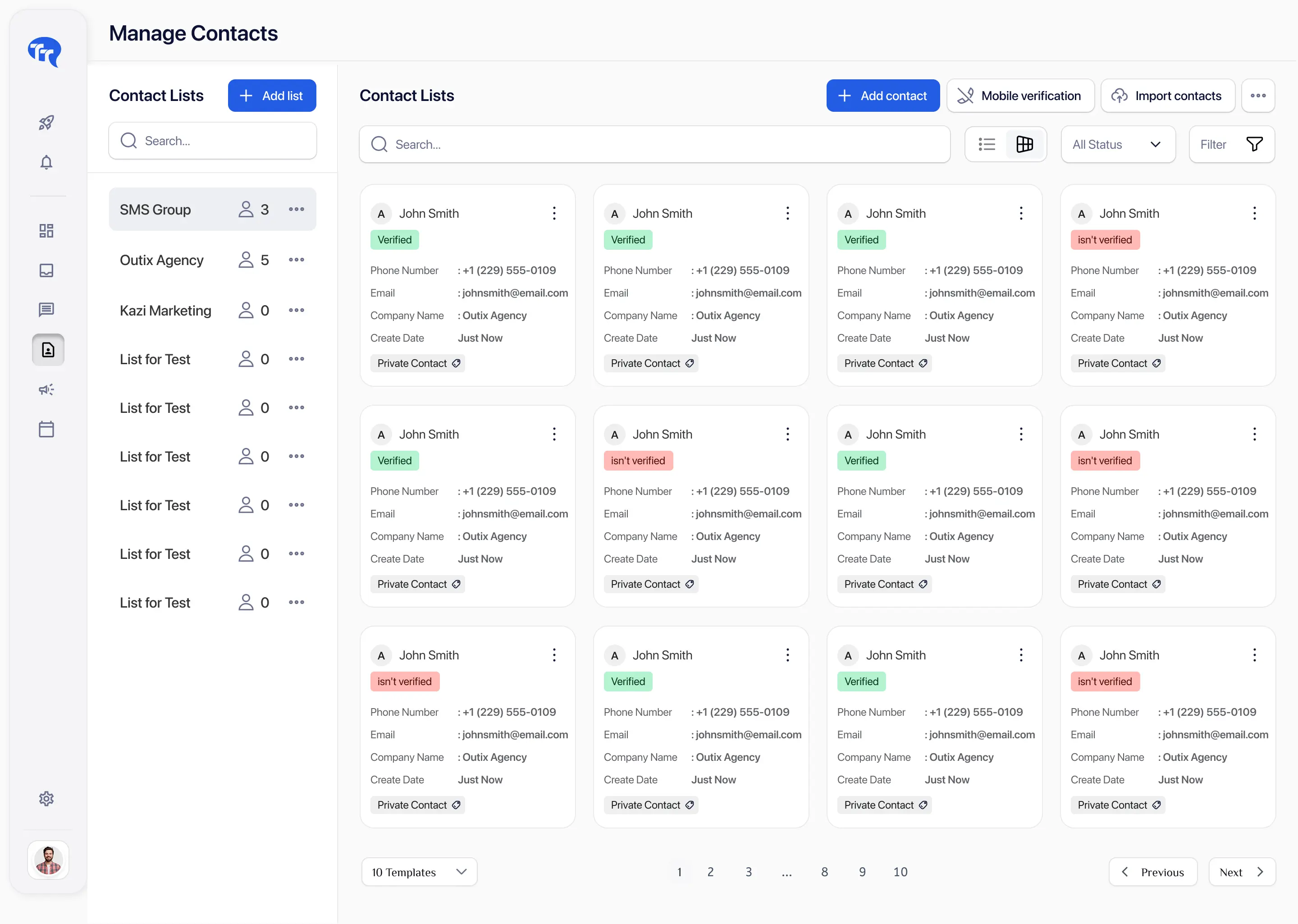
TextTorrent SMS inbox showing customer contact details beside the conversation
Find Conversations

Locate Replies Through Claims, Inbox Views, and Available Controls

Use Claims and the main inbox to identify conversations that need attention. Where the product provides search or filter controls, use them to locate a contact conversation more quickly.

  • Find a customer conversation that needs a reply
  • Review unclaimed replies in Claims
  • Open accepted conversations in the main inbox
  • Locate unread or newly arrived replies where that state is shown
  • Review conversations connected to a specific business number where available
  • Work inside the correct sub-account workspace

Exact search fields, filter options, saved views, and advanced filtering should match the current TextTorrent interface. Do not assume every listed practical use maps to a dedicated filter control.

TextTorrent shared SMS inbox with conversation search and filter controls
Campaign Replies

Turn Bulk Campaign Replies into Individual Conversations

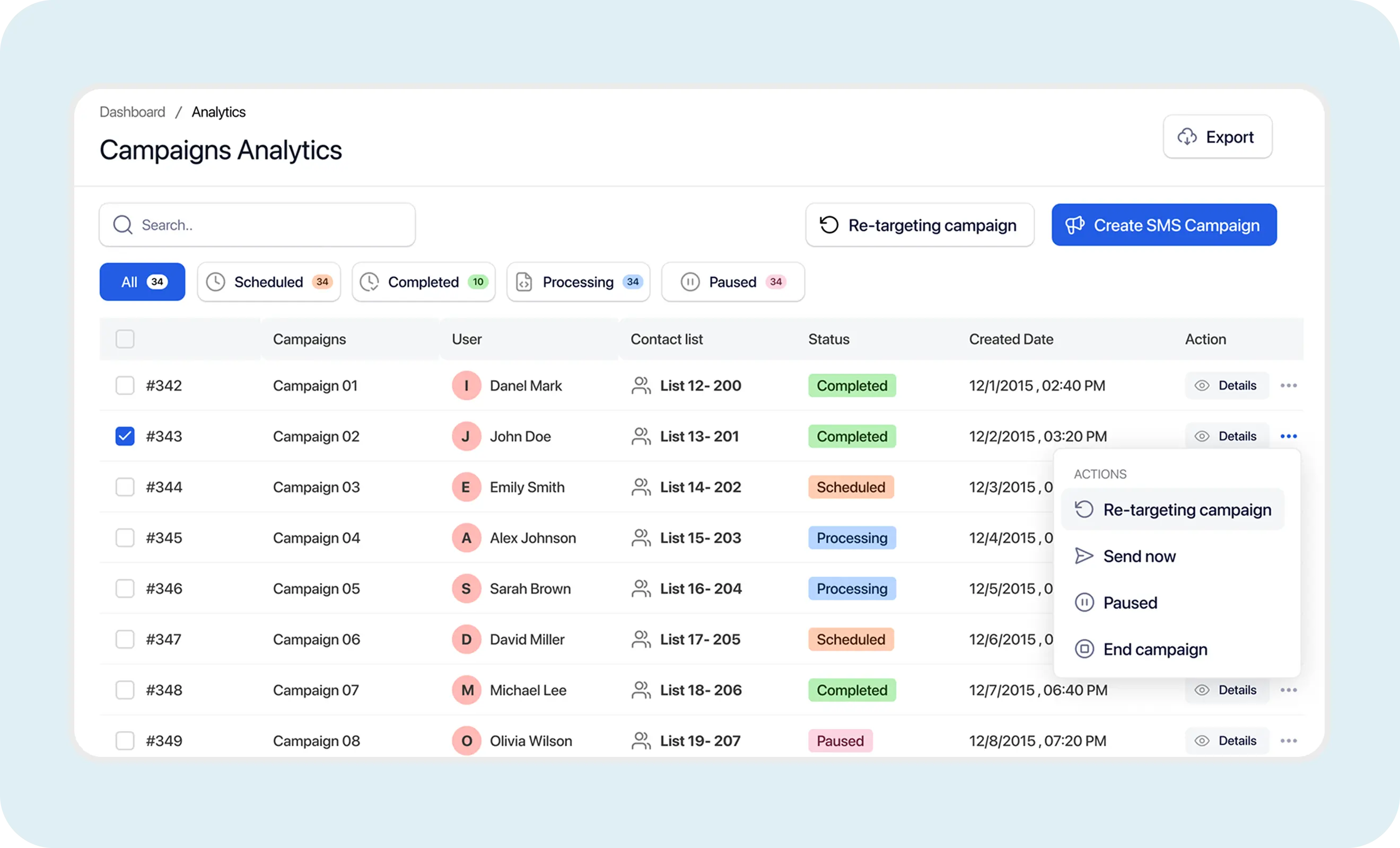
TextTorrent connects bulk messaging with the shared inbox so a campaign reply can become a managed team conversation.

Explore bulk SMS software

  1. A business sends a bulk SMS campaign.
  2. A recipient replies.
  3. The reply enters Claims or the verified inbox workflow.
  4. An authorized team member takes ownership.
  5. The user reviews the original campaign message where available.
  6. The user responds directly from the inbox.
  7. Future messages remain in the conversation history.
  • Helps teams understand which campaign created the conversation where that context is available.
  • Keeps follow-up connected to contact and account context.
  • Supports continued SMS and MMS replies where the number allows.
TextTorrent shared inbox showing a customer reply generated from a bulk SMS campaign

Related workflows: Bulk SMS Software, SMS Analytics, SMS Retargeting, Two-Way Text Messaging.

Account Access

Keep Conversations Inside the Correct Team or Client Workspace

Parent accounts, sub-accounts, assigned users, roles, and permissions help keep Claims, inbox conversations, contacts, and business numbers in the correct operational context.

Agency example

  1. Client A’s campaign creates a reply.
  2. The conversation enters Client A’s verified inbox workflow.
  3. Only authorized users can view or manage it based on role and permissions.
  4. The reply remains connected to the correct client number and contact record where supported.
  5. Client B’s conversations remain in a separate operational workspace.

Connected account controls

  • Parent account
  • Sub-account
  • Assigned users
  • Roles and permissions
  • Conversation visibility
  • Claims visibility
  • Contact visibility
  • Business numbers
  • Growth supports up to five sub-accounts.
  • Pro supports unlimited sub-accounts.

Visibility depends on role and permissions. Complete legal or technical data isolation is not claimed. A unified inbox across every sub-account is not claimed.

Explore SMS sub-accounts

Messaging Tools

Continue Conversations with Supported SMS and MMS Features

Use the shared inbox to continue customer conversations with the messaging tools available for the number and account.

SMS Replies

SMS Replies

Send standard text responses through supported business numbers.

MMS and Picture Messaging

MMS and Picture Messaging

Send or receive supported image messages where the number and provider allow MMS.

Message Templates

Message Templates

Use approved reusable replies where supported, then review the message before sending.

Local Business Numbers

Local Business Numbers

Respond from the appropriate assigned business number for the conversation.

  • Not every number supports MMS.
  • Media types and sizes may vary by provider and carrier.
  • Templates should be reviewed before sending.
  • Delivered does not mean read.
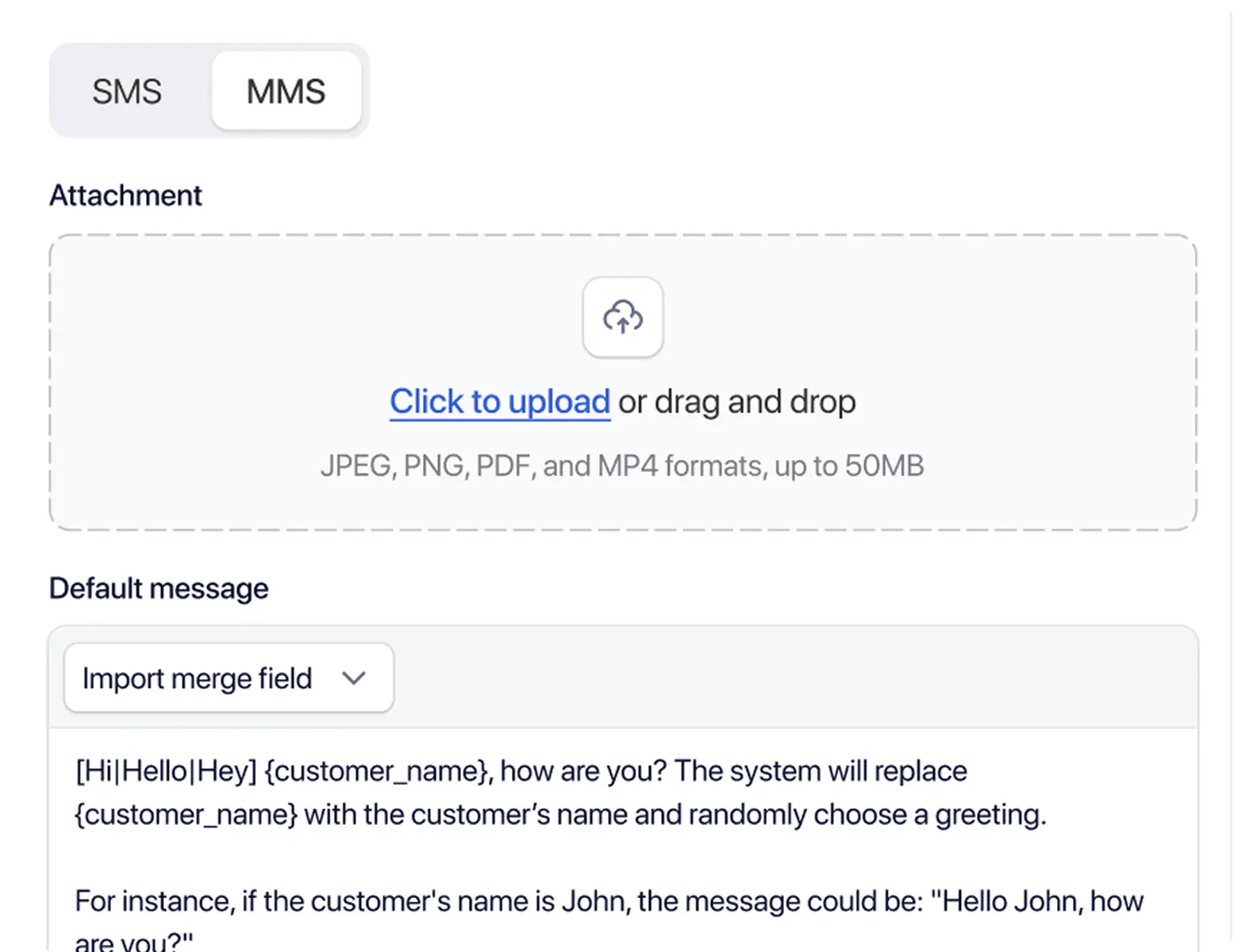
TextTorrent shared SMS inbox showing a customer picture-message conversation
TextTorrent mobile shared SMS inbox showing customer conversations
Common Use Cases

How Teams Use a Shared SMS Inbox

A shared business SMS inbox is useful when multiple teammates need to review replies, take ownership, and continue customer conversations from one workspace.

Merchant Cash Advance

Who sends

MCA providers and funding teams

Why

Continue lead and status conversations after outbound outreach.

  • Respond to business-funding questions
  • Request missing non-sensitive information
  • Continue lead follow-up
  • Answer status questions

Teams should clarify next steps without promising approval or funding.

Explore Merchant Cash Advance messaging

Real Estate

Who sends

Agents and brokerage teams

Why

Coordinate property inquiries and viewing follow-up from one inbox.

  • Respond to property inquiries
  • Coordinate viewings
  • Follow up with buyers and sellers
  • Share appointment details

Buyers or sellers may reply with availability or next-step questions.

Explore Real Estate messaging

Mortgage and Insurance

Who sends

Mortgage and insurance service teams

Why

Keep process, appointment, and status conversations organized for the right operator.

  • Answer process questions
  • Provide status updates
  • Coordinate appointments
  • Direct customers to approved document-submission channels

Do not request sensitive documents through an unapproved channel.

Explore Mortgage and Insurance messaging

Customer Support

Who sends

Support and operations teams

Why

Handle account and service questions with shared conversation history.

  • Handle account questions
  • Resolve order or service issues
  • Provide operational updates
  • Move complex issues to another approved channel

Customers may reply with account questions or service concerns.

Explore Customer Support messaging
Conversation Example

From Property Alert to Scheduled Viewing

Example scenario: a real estate team sends a property alert, then continues the conversation when a buyer replies through the shared inbox.

Initial campaign

Hi [First Name], a new property is available in [Area]. View the details here: [Link]. Reply if you would like to schedule a viewing. Reply STOP to opt out.

Customer reply

Is it available Saturday afternoon?

Team response

Yes, Saturday appointments are available. Would 2:00 PM or 4:00 PM work better for you?

  1. 01

    The customer reply enters the verified Claims workflow.

  2. 02

    A team member claims or accepts the conversation.

  3. 03

    The user reviews the original property alert.

  4. 04

    The user checks the available contact context.

  5. 05

    The user replies through the main inbox.

  6. 06

    The conversation remains available for future follow-up.

Message examples should be adapted to the business’s actual workflow, consent process, and applicable requirements.

Responsible Operations

Give Teams Clear Rules for Customer Text Conversations

A shared inbox works best when teams follow clear operational rules for ownership, privacy, and compliant messaging.

  • Confirm the correct contact before replying.
  • Review conversation history.
  • Respect opt-out and blacklist status.
  • Do not continue promotional messages after STOP.
  • Avoid exposing sensitive information.
  • Use approved business numbers.
  • Keep replies relevant to the registered use case.
  • Move sensitive or complex matters to an approved secure channel.
  • Limit access according to role and operational need.
  • Do not share user logins.
  • Remove user access when no longer needed.
  • Review templates before sending.

TextTorrent provides messaging and team-workflow tools, not legal advice. Customers remain responsible for consent, message content, privacy, account access, and compliance with applicable laws, carrier requirements, and industry rules.

Why TextTorrent

Connect Campaigns, Replies, and Team Conversations

TextTorrent keeps outbound messaging and inbound team conversations connected through Claims, inbox history, and account-scoped access.

Claims and Inbox Workflow

Claims and Inbox Workflow

Organize incoming replies using verified conversation-ownership controls.

Conversation History

Conversation History

Keep incoming and outgoing messages connected in one interface.

Campaign-to-Conversation Context

Campaign-to-Conversation Context

Review the outbound message that generated the reply where supported.

Contact and Subscriber Status

Contact and Subscriber Status

See relevant contact and suppression information before responding.

Sub-Accounts and Team Access

Sub-Accounts and Team Access

Keep conversations within the correct account and user-permission scope.

Frequently Asked Questions

Shared SMS Inbox Questions, Answered

Practical answers for teams evaluating TextTorrent as a shared business texting inbox.

A shared SMS inbox is a centralized business-texting workspace where authorized users manage incoming and outgoing customer conversations. In TextTorrent, that includes reviewing replies, using Claims to take ownership, viewing conversation history, and responding from supported business numbers.

Yes. Team access depends on the account, sub-account, role, and permission configuration. TextTorrent does not charge an additional platform seat fee when additional users are added, though permissions may still differ by setup.

An incoming reply may appear as an unclaimed conversation in Claims. An authorized user claims or accepts it, and the conversation then becomes available in the appropriate inbox so the team can review history and reply with clearer ownership.

Yes. TextTorrent conversation history lets team members review previous incoming and outgoing messages before sending the next reply.

Yes. When a recipient replies to a bulk campaign, the reply can enter the Claims or verified inbox workflow so an authorized team member can take ownership and continue the conversation with available campaign context.

Teams can locate conversations through Claims and the main inbox workflow. Where the product provides search or filter controls, use them to find a contact conversation more quickly. Exact available fields should match the current TextTorrent interface.

Picture messaging is supported where available and depends on number and provider capability. Not every number supports MMS, and media types or sizes may vary.

Conversations should remain in the correct account or sub-account context based on role and permissions. Authorized users work inside the workspace they can access. A single unified inbox across every sub-account and complete legal data isolation are not claimed.

Yes. TextTorrent is available on Android and iOS in addition to web access. Exact feature availability may vary by device and app version.

TextTorrent uses the Claims and acceptance workflow to help users take ownership. Automatic round-robin assignment should not be claimed unless it is currently supported.